Accidentally deleting videos from an Android phone is more common than most people realize. A single tap during storage cleanup, a gallery sync issue, or a third-party cleaner app can instantly remove important videos-family moments, travel clips, work recordings, or social media content.
The good news is that deleted videos are not always permanently lost. Android’s storage system, cloud backups, and recovery tools often provide multiple chances to recover deleted videos—if the correct method is used at the right time.
In this complete guide, you will learn all possible methods to recover deleted videos from the Android gallery, explained in detail, based on real-world experience and practical testing.
How Video Deletion Works on Android (Important to Understand First)
When you delete a video from your Android gallery, the file is not erased immediately. Instead:
- The system removes the file reference
- The storage space is marked as “free”
- The actual video data remains until overwritten
This is why recovery is possible-but only before new data overwrites the deleted video. Videos are larger than photos, so overwrite happens faster, making quick action even more critical.
What to Do Immediately After Video Deletion
From real recovery experience, these steps significantly increase success:
- Stop using the phone immediately
- Do not record new videos
- Do not download large files
- Avoid installing new apps
- Turn on airplane mode if possible
The less storage activity after deletion, the better your recovery chances.
Method 1: Recover Deleted Videos from Gallery Trash / Recycle Bin
This is the first and most effective method for most Android users.
How It Works
Modern Android phones include a Trash, Bin, or Recently Deleted folder inside the Gallery app where deleted videos are stored temporarily.
Retention Period
- Usually 15 to 30 days
- Some devices allow customization
Steps:
- Open the Gallery app
- Go to Trash / Recycle Bin / Recently Deleted
- Select the deleted videos
- Tap Restore
Works Best When:
- Videos were deleted recently
- Trash has not been cleared manually
In many real cases, videos are recovered within seconds using this method alone.
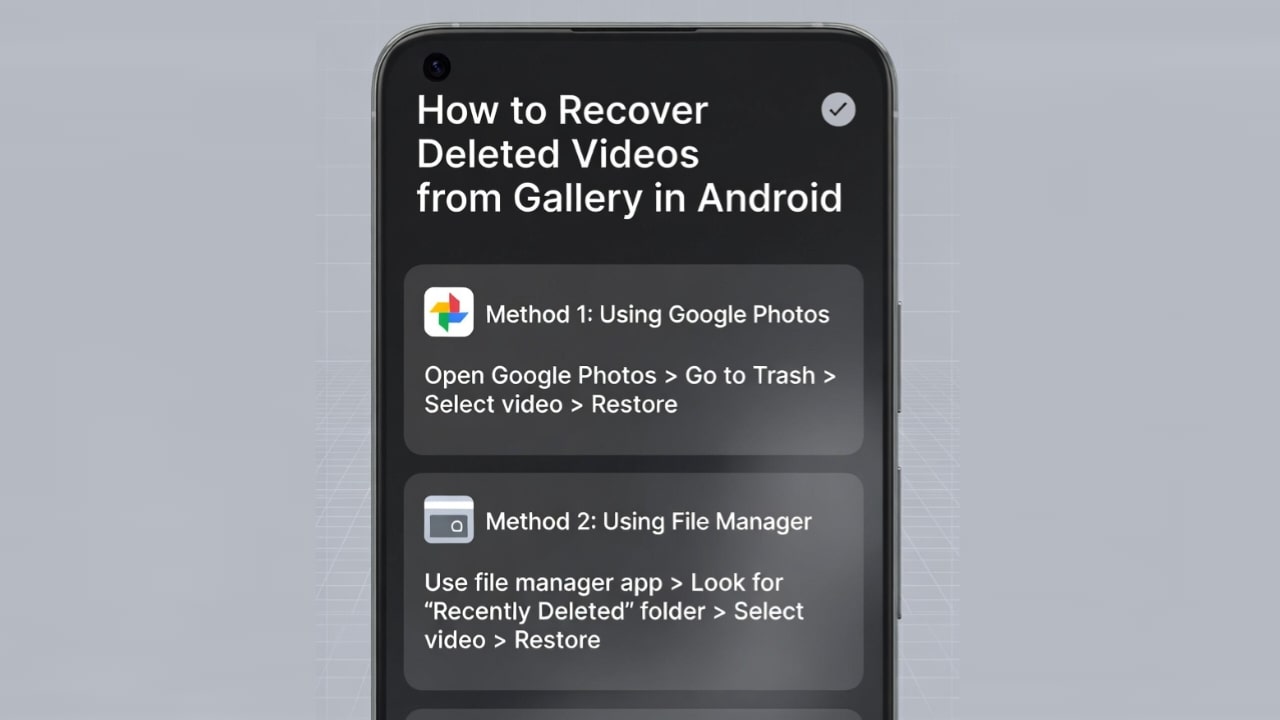
Method 2: Recover Deleted Videos from Google Photos Backup
If Google Photos backup was enabled, this is one of the most reliable recovery methods.
How Google Photos Helps:
- Automatically backs up videos to cloud storage
- Keeps deleted videos in Trash for 60 days
Steps:
- Open Google Photos
- Tap Trash
- Select the deleted videos
- Tap Restore
Important Notes:
- Backup must have been enabled before deletion
- Internet connection required
- Videos restore to both Gallery and Google Photos
From experience, this method has a very high success rate for backed-up videos.
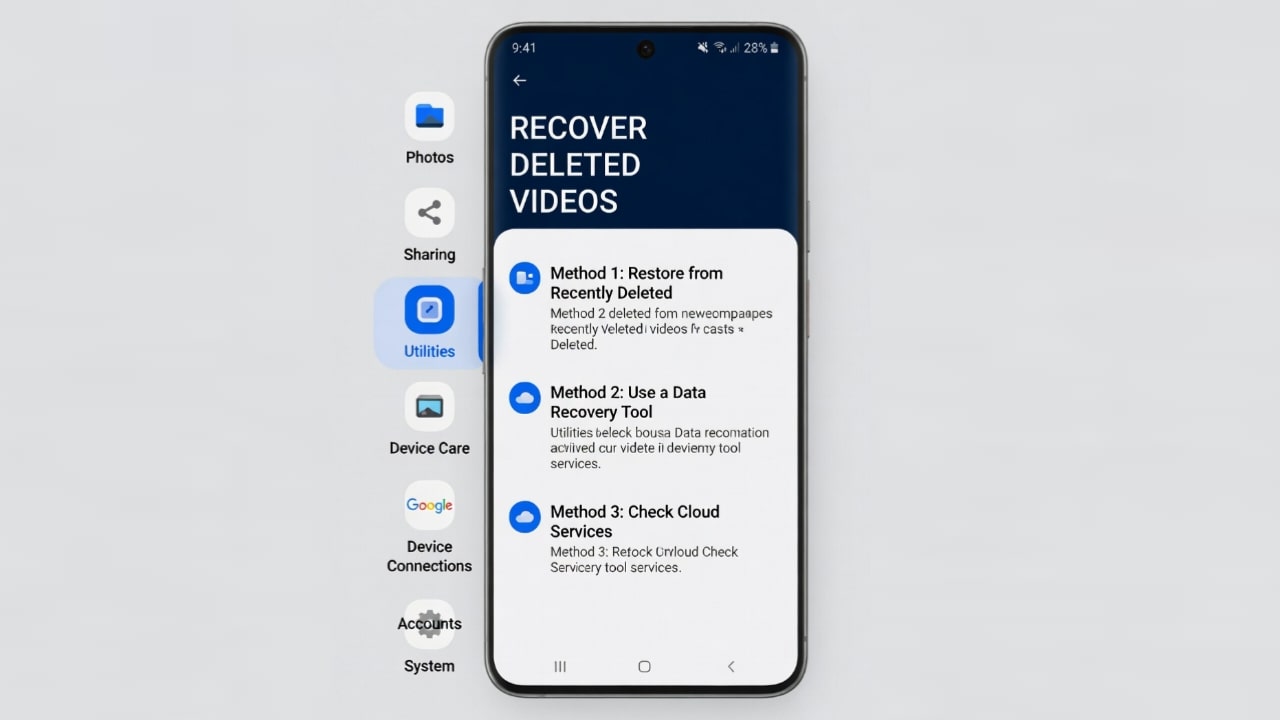
Method 3: Restore Videos from Brand Cloud Services
Many Android manufacturers provide built-in cloud backup services:
- Samsung Cloud
- Xiaomi Cloud
- OnePlus Cloud
- Oppo Cloud
- Vivo Cloud
General Steps:
- Open Settings
- Go to Cloud & Backup
- Check Gallery / Video backup
- Restore deleted videos if available
Limitations:
- Backup must be enabled beforehand
- Some clouds auto-delete old data
- Free storage may be limited
This method works well for users who rely on phone-brand ecosystems.
Method 4: Recover Deleted Videos Using File Manager (Hidden & Cache Folders)
Sometimes video files or thumbnails remain in cache directories.
Steps:
- Open File Manager
- Enable Show Hidden Files
- Navigate to:
Android > data > com.android.gallery3d > cache - Look for video thumbnails or fragments
- Copy them to a safe folder
Reality Check:
- Mostly recovers thumbnails, not full videos
- Works rarely on newer Android versions
- Useful only as a last quick check
Method 5: Use Video Recovery Applications (Detailed & Practical)
Video recovery applications are widely used but often misunderstood. Understanding their real capabilities and limitations is essential.
How Video Recovery Apps Work
Recovery apps scan:
- Deleted video file signatures
- Cache and temporary files
- Unallocated storage sectors
They then attempt to reconstruct playable video files.
Types of Video Recovery Apps
1. No-Root Video Recovery Apps
- Do not require root
- Easy and safe to use
- Mostly recover cached or low-quality videos
2. Root-Based Recovery Apps
- Require full storage access
- Perform deep scans
- Higher recovery potential
- Risk of warranty void and data loss
General Steps to Use Recovery Applications
- Install a trusted video recovery app
- Grant required permissions
- Select Video Scan
- Wait for scanning to complete
- Preview recoverable videos
- Restore selected files
Real-World Expectations:
- No-root apps have limited success for large videos
- Root access increases recovery depth
- Recently deleted videos recover better
- Free versions usually restrict the recovery size
Recovery apps can help, but they are not guaranteed solutions, especially for large HD or 4K videos.
Method 6: Recover Deleted Videos Using a Computer (PC-Based Tools)
Using a PC or laptop can sometimes provide more control over recovery.
Steps:
- Connect Android phone to PC via USB
- Enable USB Debugging
- Use Android recovery software
- Scan internal storage
- Recover detected videos
Pros:
- Larger preview screen
- More scanning control
Cons:
- Many tools require root
- Free versions have limits
- New Android versions restrict deep access
This method is best for advanced users.
Method 7: Recover Videos from SD Card (Highest Success Rate)
If your videos were stored on an external SD card, recovery chances are significantly higher.
Steps:
- Remove SD card from phone
- Insert it into a computer
- Use SD card recovery software
- Scan and restore videos
Why SD Card Recovery Works Better:
- Less aggressive overwrite
- Easier file system access
- Higher success rate for large videos
From experience, SD card recovery provides the best results among all methods.
Method 8: Restore Videos from Old or Forgotten Backups
Always check for:
- Google Drive backups
- Old laptop or PC backups
- External hard drives
- NAS storage
Many users recover videos simply by checking older backups they forgot about.
Why Video Recovery Fails (Common Reasons)
Even after trying all methods, recovery may fail due to:
- Storage overwrite
- Large video file size
- Time gap after deletion
- Full device encryption
- Factory reset
- Android security restrictions
Understanding these limitations helps avoid false expectations.
Best Practices to Prevent Video Loss in the Future
Based on long-term testing and experience:
- Enable Google Photos video backup
- Use SD card for large videos
- Avoid aggressive cleaner apps
- Regularly transfer videos to PC
- Keep Trash enabled in Gallery
Prevention is always more reliable than recovery.
Final Conclusion
Recovering deleted videos from an Android gallery is possible in many cases—but time, storage activity, and backup availability are critical factors. Always start with Gallery Trash and Google Photos, then try recovery apps, and finally move to advanced methods like PC tools or SD card recovery.
Video recovery is more challenging than photo recovery due to file size, but with the right approach, many videos can still be saved.