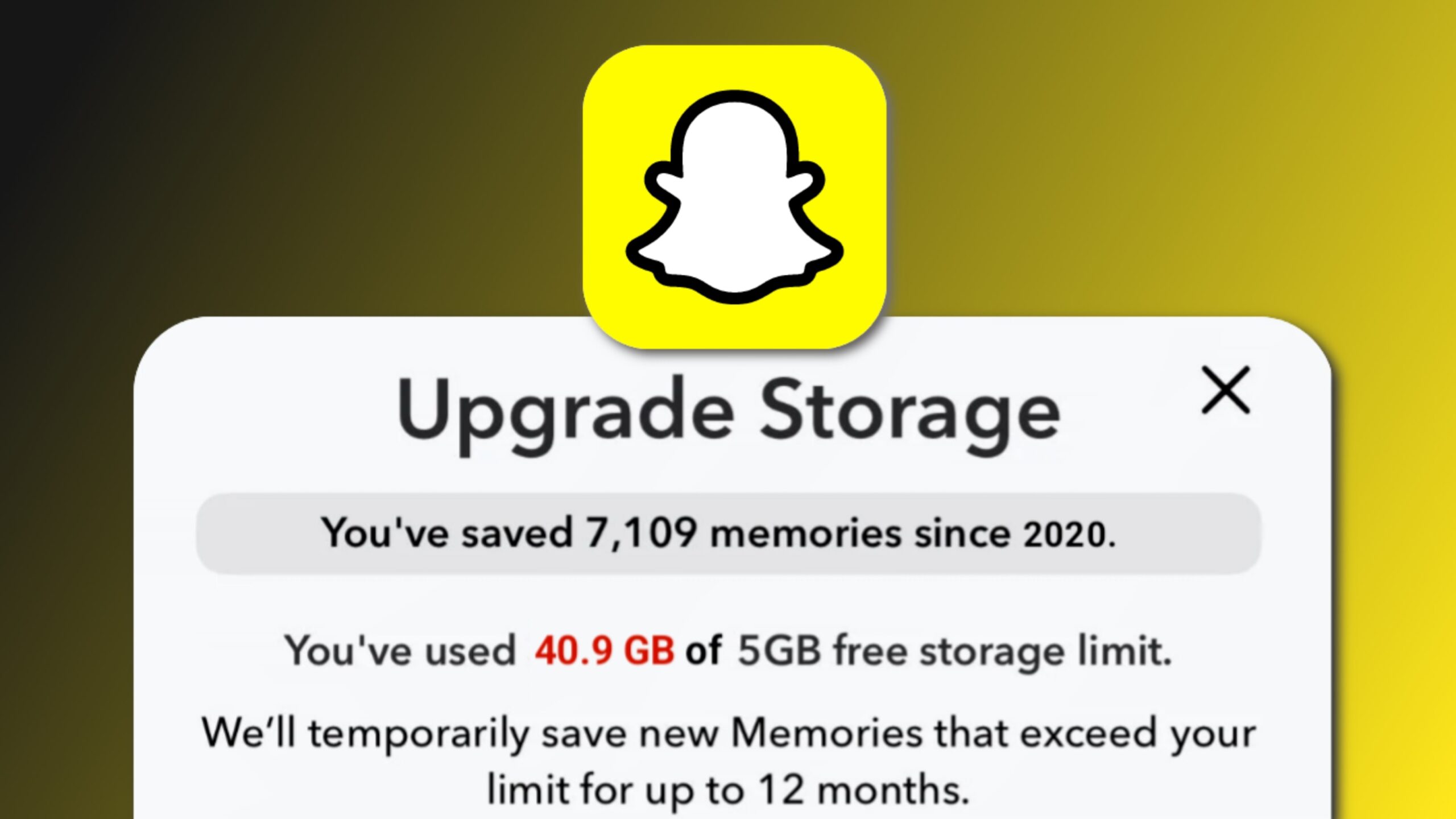
Snapchat has released numerous updates over the past year that many users haven’t liked. If you also click photos and videos on Snapchat, you may have encountered a common problem recently: the “Storage Full” message!
This issue occurs when you try to save your snaps to Memories, but Snapchat won’t allow it. Many users are troubled by this problem because they can’t save their new photos.
In today’s article, we’ll take a step-by-step look at how to fix the “Storage Full” problem on Snapchat and why it occurs.
Why the “Storage Full” Problem Appears on Snapchat
First, it’s important to understand why this issue occurs on Snapchat. The volume of people’s daily snaps and memories on Snapchat is increasing every day. Every user’s memories are stored on Snapchat’s servers, so the company has introduced a new storage limit to optimize its system.
- According to a recent Snapchat update, you can now store a maximum of 5GB of data in your memory for free.
- If your data exceeds 5GB, Snapchat will display a “Storage Full” message, and you won’t be able to save new photos until you delete some old memories or upgrade to a Snapchat Plus plan.
What is Snapchat’s New Update: Upgraded Storage for Memories?
Snapchat has made a major change in its latest update. The Memories storage limit is now restricted to 5GB for free users. This means that if your total Snapchat Memories data exceeds 5GB, you will see a “Storage Full” error.
- But Snapchat also offers a premium solution to this problem: Snapchat Plus.
- If you subscribe to the Snapchat Plus plan, you get extra storage, allowing you to store more than 5GB of data.
Pro Tip: If your data is already around 4.8–4.9 GB, deleting some old snaps is the best option, and this should resolve your storage full issue to some extent.
Use the Previous Version of Snapchat to Get Rid of This Issue
If you’re experiencing the “Storage Full” issue on the new version, a temporary solution is to use a previous version of Snapchat.
Since this 5 GB limit wasn’t fully implemented in older versions of Snapchat, some people have noticed that installing an older version caused them to run into the “Storage Full” error.
How to:
- Go to the Play Store and uninstall the current Snapchat.
- Then search Google for “Download older version of Snapchat app.”
- Download an older version from a trusted website (for example, version 12.60.0 or earlier).
- Install, log in, and check if the issue is resolved. There’s a high chance this trick will work on most devices.
Note: This trick is only a temporary solution, and for a permanent solution, you’ll need to manage your storage or upgrade. Snapchat will block older versions after a certain time.
Use Free Cloud Storage (Best Alternative for Saving Memories)
If you want to keep all your memories safe while still staying within Snapchat’s limits, free cloud storage is the best option.
Steps to save your memories to the cloud:
- Open Snapchat and go to the Memories section.
- Select the photos and videos you want to export.
- Tap “Export Snap” and choose “Save to Camera Roll.”
- Now upload those files from your phone gallery to Google Drive, Dropbox, MEGA, iCloud Drive, or any other free cloud storage.
This will free up your Snapchat storage and keep your memories safe.
Free cloud options:
- Google Drive: 15GB free space
- Dropbox: 2GB free space
- MEGA Cloud: 20GB free space (initially)
Pro Tip: Once you save your snaps to the cloud, delete them from Snapchat to free up space and save new ones.
Upgrade the Snapchat Plan to Get More Storage. If the methods above aren’t working for you, or if you need more storage, you can opt for a storage upgrade. If you’re a content creator, you should definitely subscribe to Snapchat Plus.
Benefits of Snapchat Plus:
- Extra storage for Memories
- Exclusive filters and icons
- 20+ exclusively Snapchat Features
- Early access to new Snapchat features
Steps to Upgrade:
- First, open Snapchat, then tap the Profile icon.
- Go to the “Snapchat+” option and choose “Start Free Trial” or “Subscribe.”
- You will receive additional storage once the payment is complete.
This plan is available on a monthly or yearly basis, and if your main problem is storage-related, this will be the best long-term fix. Also, keep in mind that the price of a Snapchat Plus subscription varies by country.
Also Read:
- Why does the Lightning bolt next to my friend mean on Snapchat?
- What does ‘Media Upload’ on Snapchat mean | How to Remove Media upload on Snapchat
- Snapchat’s New Update: Only 3 Tabs Now | Here’s What Changed
Conclusions
So guys, I hope this clears up any doubts or issues you may have regarding Snapchat “Storage Full.” You can explore our website for more information on Snapchat.