
Snapchat is a popular social media app that focuses on privacy and quick interactions. Because of its privacy-centric design, users only see a small circular profile display within the app. Unlike other platforms, there is no built-in option to expand or zoom in on a display picture.
If you want to view a public profile photo clearly, here is a simple and standard educational guide on how the process works using basic web browser options.
Understanding Snapchat’s Profile Display Settings
Snapchat’s interface keeping profile pictures inside a small frame is a deliberate layout choice. Whether an account is public or private, the application restricts deep zooming to maintain a clean user interface.
Taking screenshots directly inside the mobile app often results in a blurry or cropped image because the app compresses the visual preview. However, public display profiles can be viewed more clearly through web-based platforms.
How to View a Snapchat Profile Picture in Full Size
ViewSnapStories lets you look up any public Snapchat profile and see the display picture in full resolution. Here’s how to use it.
- Go to viewsnapstories.com/profile-viewer in any browser.
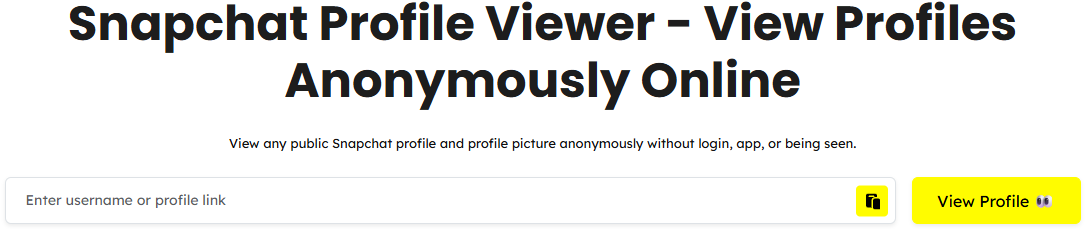
- Type the Snapchat username into the search box. You can enter a plain username, one with the @ symbol or a full profile link.
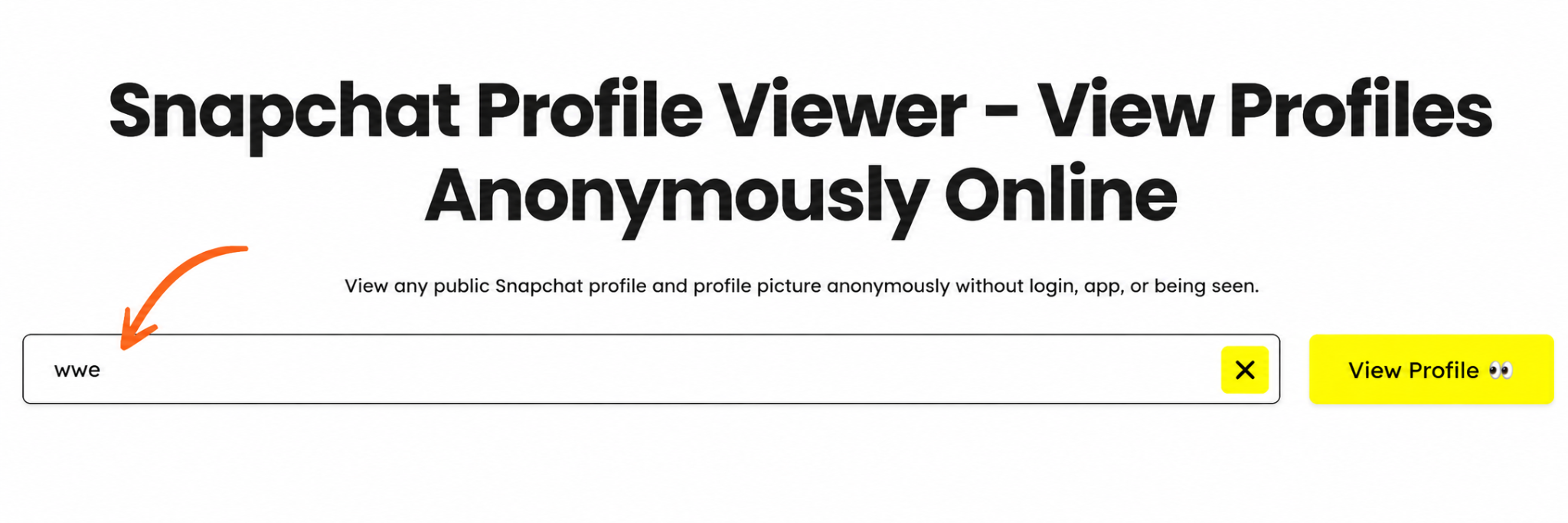
- Click the view profile button.
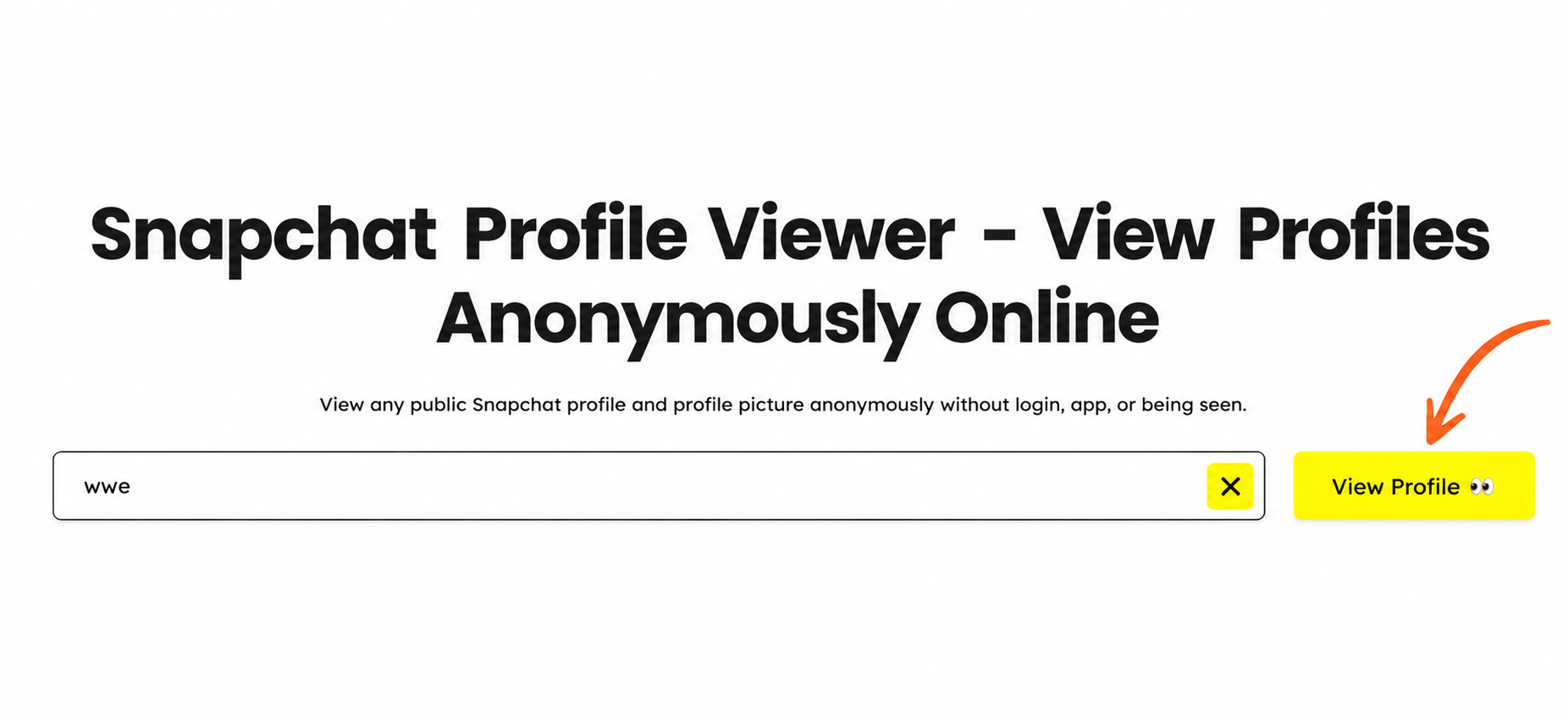
- The profile loads along with the display picture in full size.

- You can view the picture clearly at full resolution directly in your browser.
The account owner gets no notification. Your name doesn’t appear anywhere on their end and no Snapchat login is needed at any point.
How to Save a Snapchat Profile Picture-
Once the profile picture loads in full size on viewsnapstories.com/profile-viewer saving it to your device takes one extra step.
On Mobile
6. After the profile picture loads, press and hold on the image.
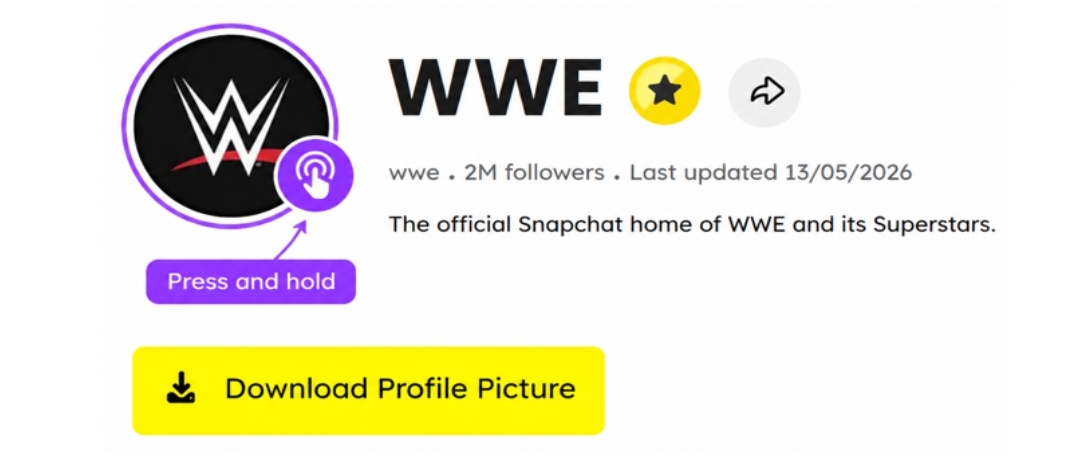
7. A menu will appear on your phone. Tap Save Image depending on your device.

8. The image saves to your camera roll or downloads folder in full resolution.
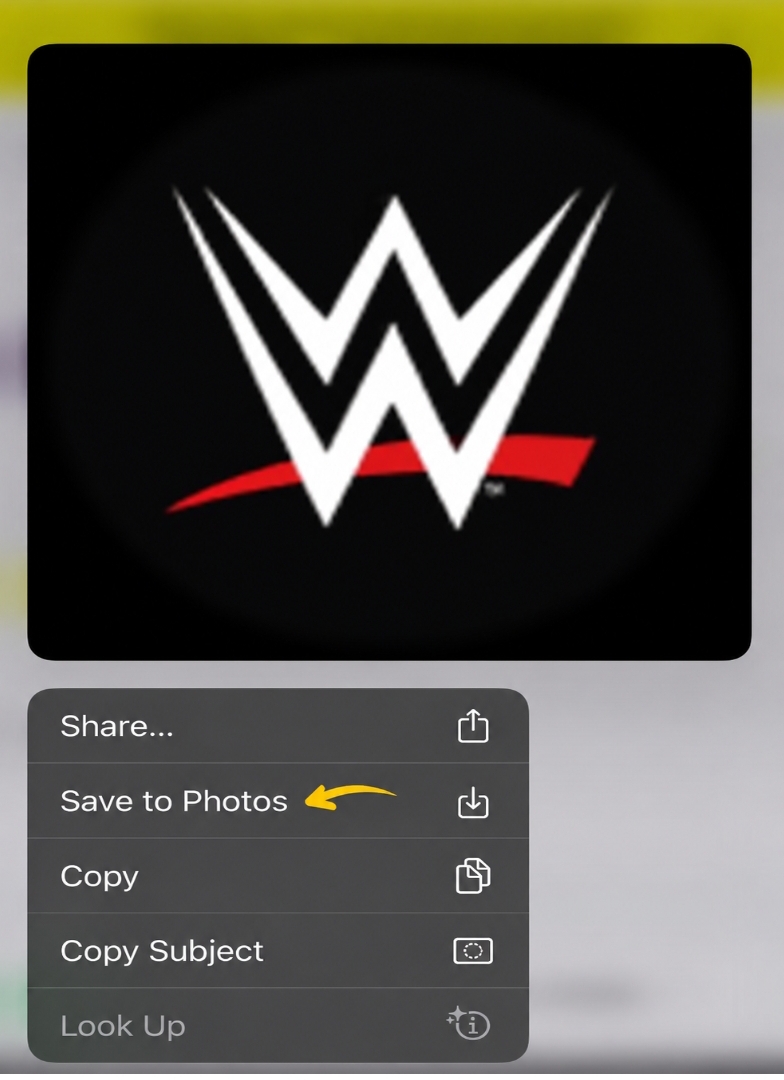
On Desktop
9. After the profile picture loads right click on the image.
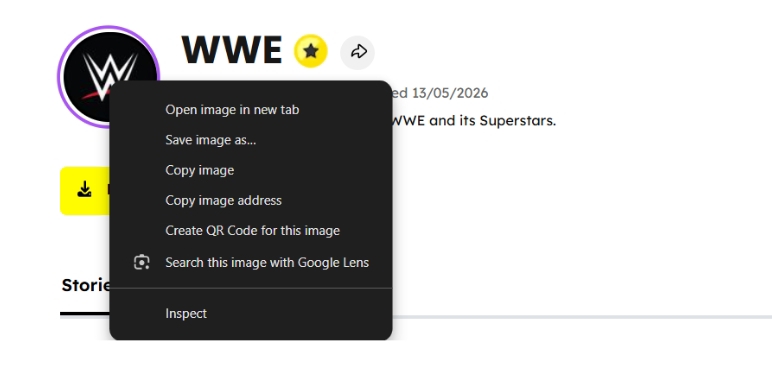
- Select Save Image As from the menu.
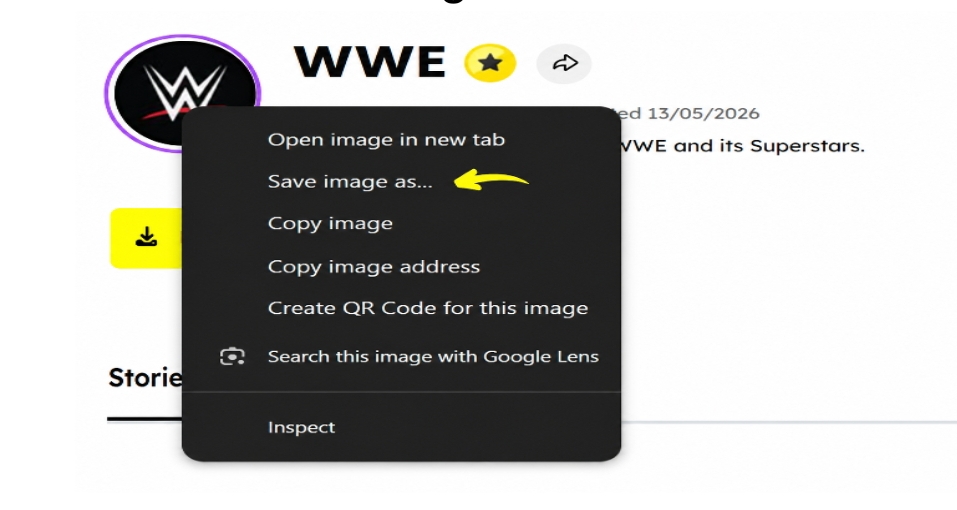
11. Choose where to save it on your computer and click Save.
That’s it. The file saves in its original quality with no watermark and no logo added on top.
How to increase snapchat profile picture quality?
To maximize your Snapchat profile picture quality, you need to bypass the in-app camera and upload a high-resolution file directly from your camera roll. Start by taking your photo using your phone’s native camera app, which utilizes your device’s full sensor and built-in image processing without compression. Once you have the perfect shot, use your phone’s built-in photo editor to crop it into a perfect square (1:1 ratio) beforehand, preventing Snapchat from using its own heavy-handed scaling tools during the upload process.
Before actually changing the picture, open your Snapchat settings, locate the “Data Saver” option, and turn it off to ensure the app doesn’t bottleneck your media quality. Finally, upload the cropped photo from your gallery while connected to a strong, stable Wi-Fi network rather than mobile data, which prevents the app from aggressively compressing your image file during transmission.